I usually have three to five Claude Code sessions running at once. One is fixing a bug in the backend. One is babysitting a build. One is reviewing a PR. One is writing a migration. Until a few weeks ago I was tracking all of them in VS Code's terminal tabs — alt-tabbing back and forth, hunting for the one that was actually waiting on me, and missing the moment one of them finished and went idle.
So I built Glance.
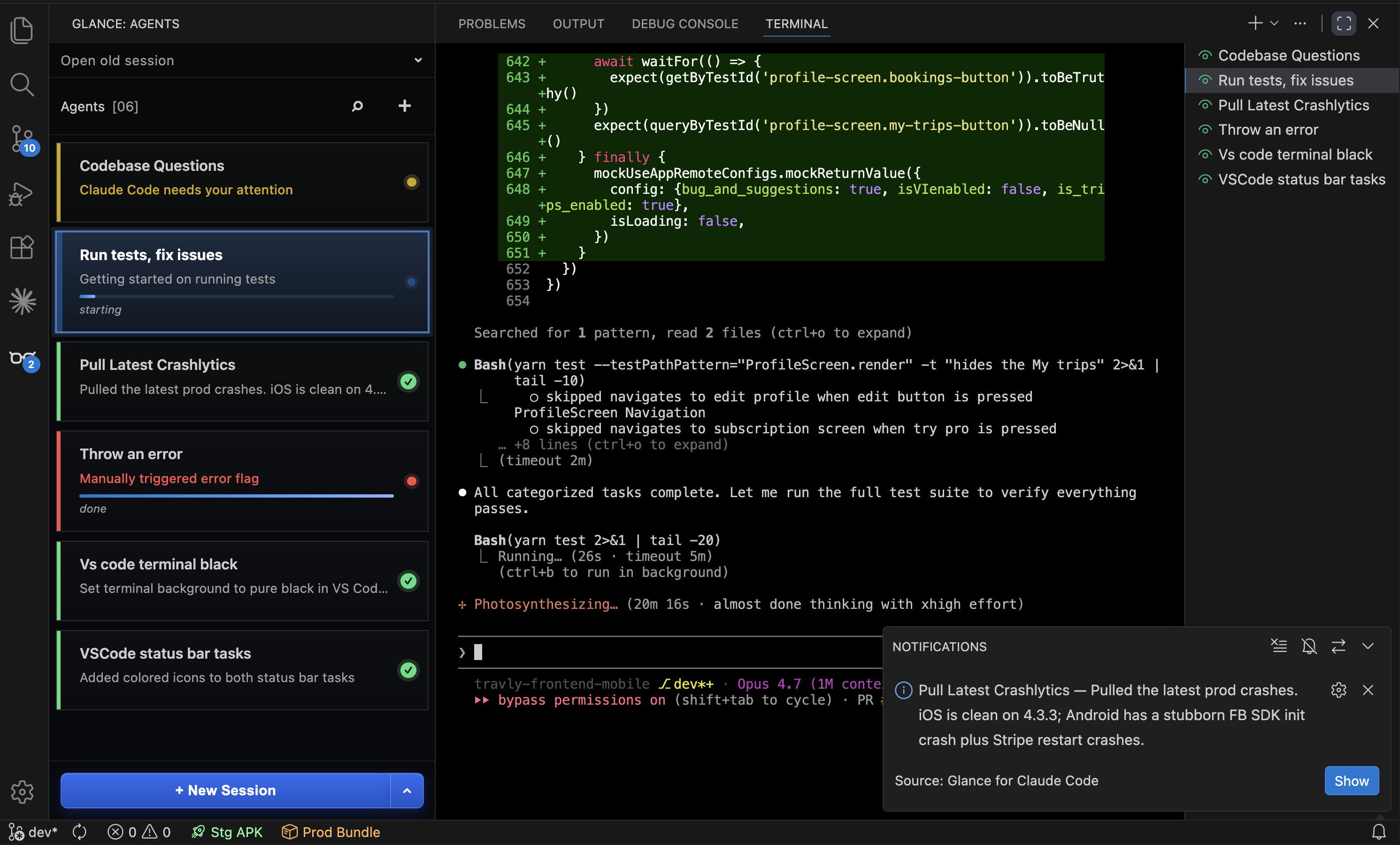
Glance is a VS Code extension that runs your Claude Code sessions side-by-side in a sidebar panel. Each session gets a card. The card shows what the agent is doing, how far along it is, and whether it needs you. When something is waiting on you, the activity bar lights up. When a background turn finishes, you get a toast.
It's free, MIT-licensed, and on the Marketplace as hamzawaleed.glance-claude-code.
The problem I actually had
The real pain wasn't running multiple sessions — that part Claude Code handles fine. The pain was knowing which one to look at. Terminal tabs are silent. They don't tell you "this one finished" or "this one is asking for permission." So I'd get pulled into one session, lose context on the other four, and come back to find two of them had been idle for ten minutes.
I tried scripting around it — checking transcript files, scraping shell output, parsing emoji markers I'd had Claude print into the terminal. Everything I built was brittle. Terminals lie. Buffers wrap. ANSI escapes get in the way.
The version that actually works does something different.
What a card shows
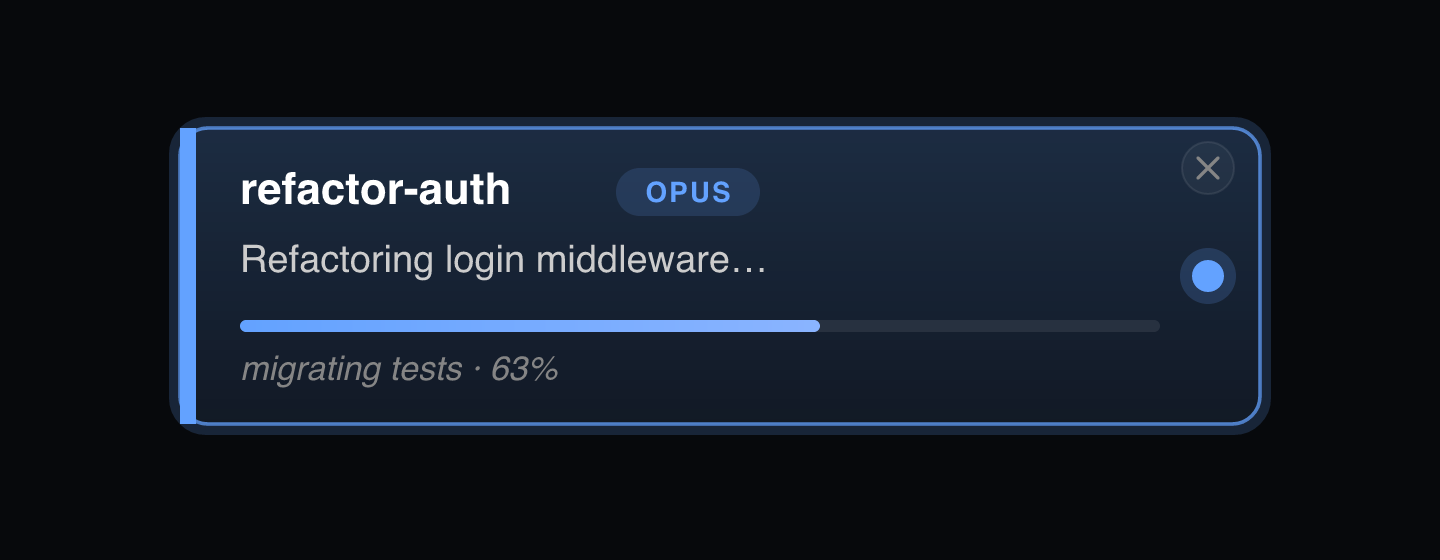
Every card carries five fields:
- Title — a 2–4 word label. The agent claims one on its first turn; you can rename it — press
ror double-click — and the rename sticks. - TL;DR — one short sentence describing the latest outcome. "Refactored the auth flow." "Waiting on the migration to finish."
- Progress — a bar with a label, for multi-step work. Hidden on trivial turns.
- Needs input — when set, the card lights yellow.
- Error — when set, the card lights red.
No log scraping. No regex over emoji. The agent itself reports its state — and that's the entire trick.
The trick: Claude updates its own card
Glance runs a tiny MCP server — hosted right inside the extension — that exposes one tool: update_state. The extension launches Claude with --mcp-config pointing at it, plus a system prompt that says, in roughly these words:
After EVERY response — short, long, trivial, planning, mid-tool-chain — your LAST action MUST be a call to
update_state, with ALL FIVE fields populated.
Claude follows the instruction. The call lands in the MCP server the extension hosts in-process — Claude reaches it over a localhost-only HTTP connection — so the update_state payload arrives straight in the extension, which diffs it against the last known state and pushes a partial update to the React webview. The card re-renders.
That's the whole pipeline:
Claude tool call
  → POST to the extension's in-process HTTP server (127.0.0.1)
  → extension diffs and posts agentUpdate to the webview
  → card re-renders
I tried the obvious alternative first — --append-system-prompt — but the shell echoed the prompt into the visible terminal on launch, which was awful. Returning the instruction in the MCP server's initialize response keeps it invisible.
Two runtimes per agent
Behind every card, two processes are running:
- The extension host. Owns the agent list, the persistence, and a small HTTP server bound to localhost. Spawns each Claude session.
- The Claude process. Runs in a
node-ptychild shell, wrapped in avscode.Pseudoterminalso VS Code owns the scrollback. From the user's perspective, it's a normal terminal — you type, Claude responds, history scrolls.
There's no third process. The MCP server Claude calls to mutate the card is hosted by the extension host itself — registered as an http-type MCP server, so Claude connects straight to it. Earlier versions spawned the MCP server as a separate child and bridged its output back through files on disk; folding it in-process removed a process, the files, and a class of lost-event bugs.
Hook events ride the same HTTP server on a separate route. Stop, UserPromptSubmit, Notification, SessionStart, and — for subagents — PreToolUse and PostToolUse are wired to a short Node script that POSTs each event to the extension. That's how Glance knows when a turn started, when it finished, when you /clear'd the session, and which subagents an agent is running.
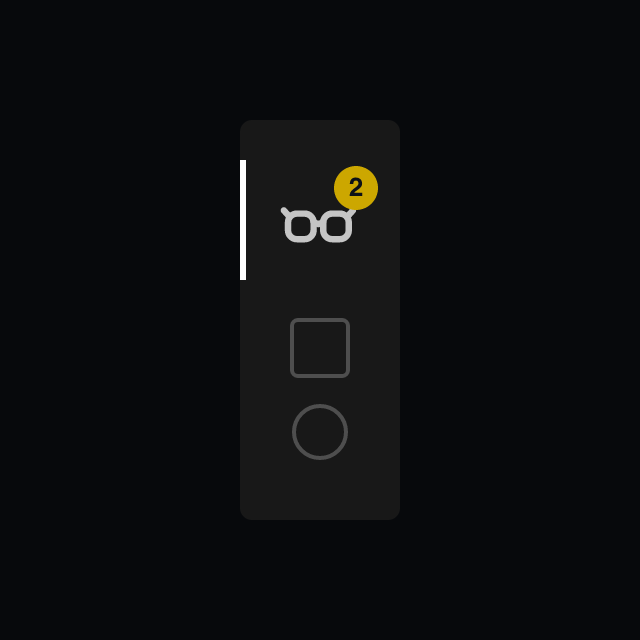
The activity-bar badge — the little count that says "two of your agents need you" — is a derived count of agents.where(needsInput || error). It recomputes on every update, never tracked incrementally, so it can't drift.
Sessions stick around
Close VS Code. Reopen it. Every card is still there. Reload-the-window doesn't kill them either.
The trick is that cards render from the last-known state immediately (it's just a JSON file on disk), but the actual Claude process isn't restarted. When you click a dormant card to focus it, Glance shells out to claude --resume <sessionId> to revive that specific session. Until you click, it costs nothing.
Agents you spawned but never prompted are filtered out — they don't have a transcript on disk yet, so claude --resume would fail with "no conversation found." Only agents that actually got a first prompt are persisted.
Mix models per agent
The model dropdown — the chevron beside the + in the panel header — picks a model — Opus, Sonnet, or Haiku — for each agent. The card shows a small chip with whichever one it's running. The agent doing a quick rename can be Haiku while the one writing the migration is Opus, and you're not paying Opus prices for everything.
Toasts you don't mind
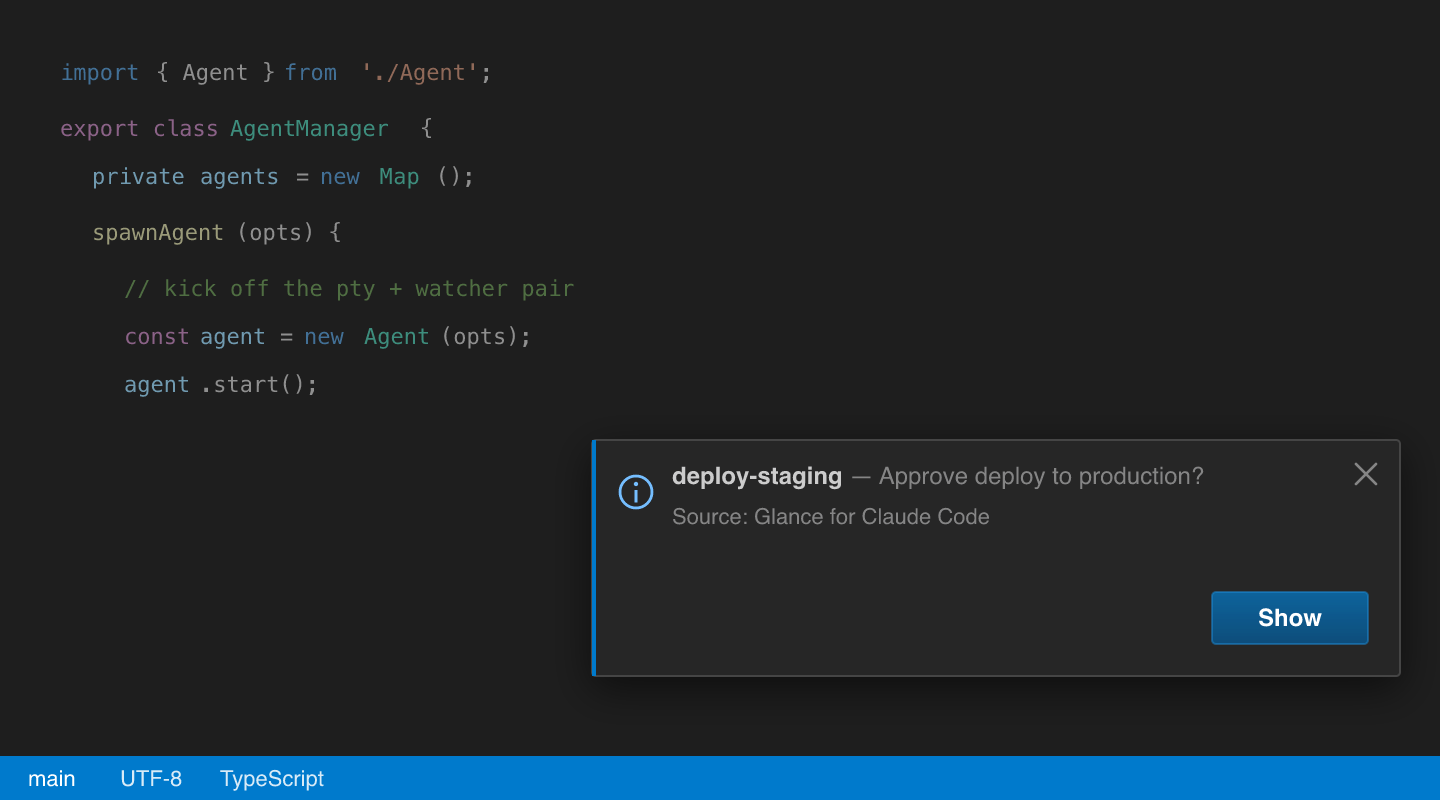
When a background turn finishes — meaning you're not actively looking at that agent's terminal — Glance fires a native VS Code toast. The toast carries the agent's name and the latest TL;DR or needs-input reason. A Show button on the toast jumps you straight to that terminal.
The toast is suppressed when you are already looking at the agent's terminal. No "your work is done" ping for work you're staring at.
There's a short audio tone too, configurable.
Steering the fleet from the keyboard
The whole point of one panel is that you steer five agents from it without reaching for the mouse.
From anywhere in VS Code:
Cmd+Shift+G/Ctrl+Shift+G— focus the Glance panel. Press it again with the panel already focused and you spawn a new agent.Cmd+Alt+N/Ctrl+Alt+N— new agent without leaving wherever you are.
With the panel focused: Cmd+Shift+G
↑/↓— cycle through cards.Enter— jump into the highlighted agent's terminal.Esc— drop back to the panel.g— spawn a new agent.t— spawn a plain shell terminal (no Claude attached).r— rename the highlighted card.cc(pressctwice within 400 ms) — run/clearon the highlighted agent.pp— pin or unpin the highlighted card.f— toggle the bottom panel maximized; useful for full-screening one terminal.Cmd+Backspace/Ctrl+Backspace— kill the highlighted agent.
Rename a card by pressing r — the name opens pre-selected, so you type over it and hit Enter — or by double-clicking its title. The rename is sticky either way: Claude won't overwrite it until you /clear the session. Drag a card up or down to reorder the fleet, and the order persists across reloads.
Shipping six VSIXes per tag
The first version of Glance was a single 16 MB .vsix because node-pty bundles native prebuilds for every supported platform — darwin-arm64, darwin-x64, linux-x64, linux-arm64, win32-x64, win32-arm64. A Mac install was shipping all six, and only one was ever going to run.
A small script (scripts/package-platforms.mjs) moves every other-platform prebuild dir aside before vsce package, then puts them back in a finally. The Marketplace serves whichever .vsix matches the user's OS and arch. End result: 2.2 to 3.5 MB per install instead of 16.
The release pipeline is a GitHub Actions matrix — one job per target, all triggered by pushing a v* tag. macOS and Windows use the prebuilds shipped in node-pty's npm tarball. Linux has no prebuilt binary, so the runner compiles node-pty from source via node-gyp and the workflow moves the build output into the prebuilds/ slot the package script expects. Each matrix job publishes its .vsix independently with fail-fast: false, so a flaky Windows-ARM runner doesn't block the macOS release. vsce's "already published" error is swallowed as success so partial re-runs are idempotent.
So: git tag v0.0.X && git push --tags, and ten minutes later it's live on every platform.
What I learned building it
A few unobvious things:
- Tool-output as a UI channel is underrated. The MCP server returns a one-line "Agent card updated." string on every call, which is what Claude sees. Returning nothing makes Claude paranoid that the call failed and call again. Returning too much wastes tokens. One short confirmation is the sweet spot.
- Streaming flags are tricky. Claude's idle "Notification" hook fires after ~60s of silence — same hook that fires when it's blocked on a permission. I had to gate the "needs attention" flag on whether a stream was active, otherwise every idle agent slowly turned yellow.
node-ptywon't bundle. The native binding has to stay external in esbuild, and the spawn-helper needschmod +xafterpnpm installbecause npm tarballs strip the executable bit. Without that, VS Code's hardened runtime refuses toposix_spawnpit.- An MCP tool call can't reach the extension directly — they're separate processes. The first version bridged the gap with files on disk and a watcher; a dropped file event could leave a card frozen mid-turn. The fix that stuck was making the extension be the MCP server, reached over a localhost HTTP connection — no files, nothing to miss.
What's new
Glance ships often. Newest changes first.
July 6, 2026 — v0.0.34
- Glance now costs your sessions about half as many tokens. Every Claude session attached to Glance carries some standing context — the card-update instructions served over MCP, the
update_statetool schema, and a small nudge on every prompt. All three have been rewritten in a compressed, telegraphic style: same rules, same behavior, roughly 1,800 fewer tokens per conversation. That's context window handed back to your actual work.
June 20, 2026 — v0.0.33
- A session really does keep its title now. The "rename once per conversation" change in v0.0.31 only governed the
/renameecho into the terminal — the card and terminal-tab title could still flip mid-conversation whenever the agent reported a different title. Now the title is claimed once, at the start, and locked for the rest of the conversation;/clear(or/compact) resets it so the next conversation can re-title cleanly. No more cards quietly renaming themselves halfway through a turn.
May 26, 2026 — v0.0.32
- No more "Acknowledged — task done." replies at the end of a turn. Glance injects a short reminder into every prompt to make sure the agent updates its card; some sessions had started parroting that reminder back as a closing line ("Acknowledged — single-step task, no list needed. Done."). The system prompt now explicitly forbids those closing acks and tells the agent to treat the reminder as silent plumbing. The card still updates; you just get the real answer without the extra sentence.
- The
c cclear shortcut works mid-turn. Pressingc con a focused card used to send/clearas-is, which sat in the input box behind whatever the agent was already doing — or behind anything you'd half-typed. It now sendsEsc+Ctrl+U+/clearso it interrupts the in-flight turn and wipes a dirty input box first, then clears cleanly.
May 23, 2026 — v0.0.31
- A card now tells you whether you're inside its terminal. Selecting a card and actually working in its terminal used to look identical. Now the active card has two distinct states: a blue outline when it's just selected in the panel — press
Enterto drop into it — and a brighter, solid treatment once you're typing in its terminal. One glance tells you which mode you're in. - The model picker moved up to the panel header. The big "+ New Session" button at the bottom of the panel is gone. A new session is the
+in the header now, and the model dropdown — Opus, Sonnet, Haiku — is the chevron right beside it. The panel also draws a faint border while it holds keyboard focus, so you can tell when it's listening for shortcuts. - Deleting a card is smooth again. Removing a card used to make the remaining cards jerk as they slid up to close the gap, and the next few arrow-key moves jittered along with them. The reorder animation now measures card positions correctly even mid-slide, so a delete — and everything right after it — stays smooth.
- Smaller touches. A session is now renamed only once per conversation rather than on every title change, and the turn-complete sound is a real notification tone instead of a synthesized beep.
May 22, 2026 — v0.0.30
- Cards show their background subagents. When an agent fans work out to subagents — Claude's
Agenttool — each subagent now gets its own row on the card: a short task label and a live dot that turns into a check when it finishes. You can watch three of them spin up in parallel, complete one by one, and clear when the parent turn ends — without opening the terminal to find out. - The card pipeline was rebuilt, and a stuck-card bug went with it. State and hook events now travel straight into the extension over a localhost connection instead of through files on disk. It's mostly an internals change, but it killed a real bug: a card could previously get stuck showing a finished turn while the agent was still working, because a dropped file event went unnoticed. That can't happen now.
May 22, 2026 — v0.0.28
- The session rename is instant now. The
/renamethat keeps a session's name in step with its card no longer waits for Claude to finish the turn — it fires the moment Claude assigns the title. If you happen to be part-way through typing a message when that happens, Glance still holds the rename back until you've sent it, so it never disrupts what you're writing.
May 21, 2026 — v0.0.27
- The session name follows its card title. When Claude assigns or updates a session's title, Glance now sends
/rename <title>into that terminal, so the session and the card it lives on share one name. Glance waits for an empty input box first — if you're part-way through typing a message, the rename holds until you've sent or cleared it, so it never lands on top of half-finished text.
May 21, 2026 — v0.0.26
- Plain shell terminals. Press
twith the panel focused and Glance drops an ordinary shell terminal into the fleet as its own card — no Claude attached. It's for thegit status/npm run buildside-quests you don't want to spend an agent on. The card names itself after the first command you run, and a cyan tab marker sets it apart from the green Claude cards. - Rename from the keyboard. Press
ron a highlighted card to rename it without reaching for the mouse. The title opens with the whole name selected, so you type straight over it and pressEnterto save —Esccancels.
Try it
If you spend any real time in Claude Code and have ever lost track of which terminal was doing what:
- Install from the VS Code Marketplace, or search Glance for Claude Code in the Extensions panel.
- Click the Glance icon in the activity bar, hit the + in the panel header (or
Cmd+Shift+G/Ctrl+Shift+G). - Spawn a few more. Watch them work.
A 30-second welcome tour pops up on first install to point out the activity-bar icon and the shortcuts; you can re-open it any time via Glance: Show Welcome Tour in the Command Palette.
Source is on GitHub at hamzawaleed0102/glancer-vscode. Issues and PRs welcome.